
On this page
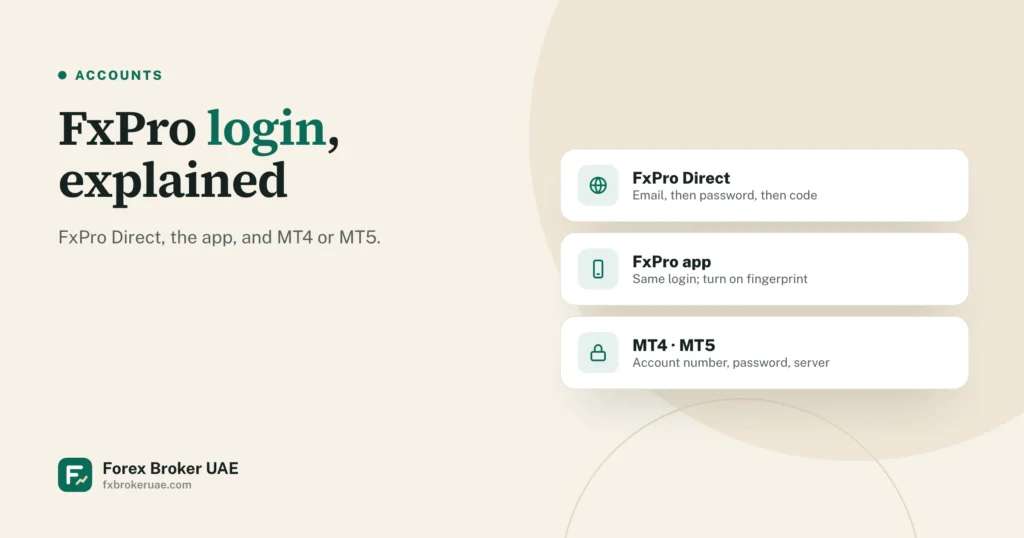
FxPro has three kinds of login: FxPro Direct, the account area where your profile, Wallet and documents are; the FxPro app; and the trading platforms, MT4, MT5 and cTrader, which use your trading account’s own login.
FxPro Direct
FxPro Direct asks for your email first and your password on the next screen. If you have turned on two-step verification, it also asks for the code sent to your email. Deposits, withdrawals, document uploads and new trading accounts are all here.
No account yet? Use our sign-up link instead of the “register” link on the login page, so that your account is linked to us and you can ask us for help.
The FxPro app
The app uses the same email and password as FxPro Direct. FxPro’s app supports two-step verification and fingerprint login; turn both on. Search for “FxPro” in the App Store, Google Play or Huawei AppGallery and check that the developer is FxPro before you install.
MT4, MT5 and cTrader
The platforms use the trading account number, that account’s password and the server, all from the email FxPro sends when the account is created. The server names and download links are on our MT4 broker page.
When a login fails
| Problem | What to check |
|---|---|
| FxPro Direct rejects the password | Use the password reset on the login screen; codes go to your registered email |
| MetaTrader says “invalid account” | Select the exact server from your account email |
| The trading password does not work | It is separate from your FxPro Direct password; change it in FxPro Direct |
| No verification code arrives | Check spam, wait a few minutes and request a new code |
Keep your account safe
- Never share your password or verification codes. FxPro and we will never ask for them.
- Type the address yourself or use your own bookmark; do not log in from links in messages.
- Turn on two-step verification in FxPro Direct and in the app.
Sources
Checked in October 2026. If something here no longer matches the source, tell us and we will correct it.